Your New Best Friend: The Terminal
The terminal might look intimidating, but it's simply a text-based way to talk to your computer. Once you understand the basics, it becomes an incredibly powerful tool that will accelerate your journey from designer to design engineer.
What You'll Learn
- What the terminal is and why it's not intimidating
- Why designers need to master the terminal
- Differences between command line, shell, and CLI
- How to open and customise your terminal environment
- How to execute your first commands
The Big Picture
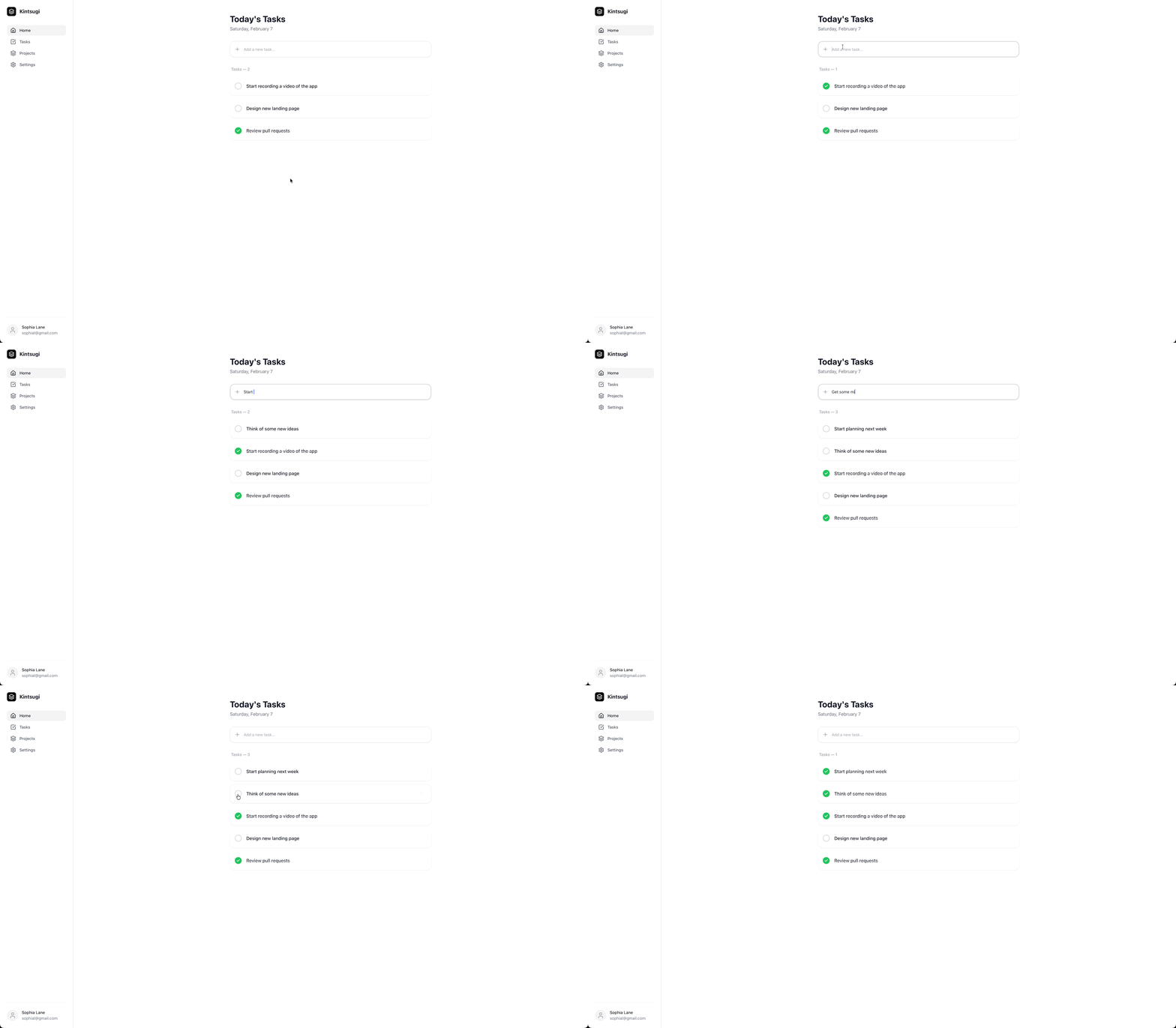
Before we dive into the terminal, let's look at where we're headed. By the end of this engineering track, you'll have built a polished, interactive ToDo application with dark mode, physics-based animations, and a professional component architecture.
Go Beyond Vibe Coding
If you've been using AI tools to generate code—prompting and hoping for the best—you've probably hit a wall. Maybe the code works but you don't understand it. Maybe you can't fix bugs or make changes confidently. Maybe you feel like a fraud.
That's Vibe Coding. There's nothing wrong with it as a starting point. But to truly own your work—to build with intention and ship with confidence—you need to understand what's happening under the hood.
This track teaches you real engineering skills. Not just copying and pasting, but genuinely understanding HTML, CSS, and JavaScript. The terminal is where that journey begins.
Why Designers Avoid the Terminal
Let's be honest: the terminal is one of the biggest blockers for designers trying to code.
It's not surprising. As designers, we're visual people. We work with colours, typography, layouts. Things we can see and manipulate directly. Then someone tells us to open a black window and type cryptic commands like cd ~/Documents && npm install. It feels like learning a foreign language blindfolded.
But the terminal is actually simpler than most design tools.
Think about Figma. It has hundreds of features, keyboard shortcuts, plugins, and hidden menus. You learned it. The terminal has maybe 20 commands you'll use regularly, and most of them do exactly what their names suggest.
What Is the Terminal, Really?
The terminal is just another way to control your computer. Instead of clicking icons and dragging windows, you type instructions.
That's it. That's the whole concept.
When you double-click a folder in Finder to open it, you could instead type cd folder-name in the terminal. Same result, different method.
When you create a new folder by right-clicking and selecting "New Folder", you could type mkdir my-folder. Same result.
The terminal isn't doing anything magical. It's just a text-based interface for the same operations you already know.
Why "Terminal"?
The name comes from the early days of computing when people used physical terminals (machines with keyboards and screens) to communicate with large central computers. The terminal on your Mac or PC is a software version of those old machines.
Clearing Up the Jargon
You'll hear several terms used interchangeably. Here's what they mean:
Terminal
The application that displays the text interface. On Mac, it's called Terminal.app. On Windows, there's Windows Terminal or Command Prompt.
Command Line
The actual line where you type commands. When someone says "do this on the command line", they mean "type this in the terminal".
Shell
The program that interprets your commands and executes them. Different shells have slightly different features. On Mac, the default is called zsh (pronounced "zee-shell"). On Windows, it's PowerShell or cmd.
CLI (Command Line Interface)
A general term for any tool you interact with by typing commands. When a developer says "use the npm CLI", they mean "type npm commands in your terminal".
For practical purposes, these terms all refer to the same experience: typing text commands to control your computer.
Opening Your Terminal
On Mac
- Press ⌘ + Space to open Spotlight
- Type "Terminal"
- Press Enter
You'll see a window with some text and a blinking cursor. That's it. You're in.
On Windows
- Press ⊞ Win + X
- Select "Windows Terminal" or "PowerShell"
Or search for "Terminal" in the Start menu.
What You'll See
When you open the terminal, you'll see something like this:
karl@macbook ~ %This is called the prompt. It tells you:
- Your username (
karl) - Your computer name (
macbook) - Your current location (
~means your home folder) - That it's ready for input (
%or$)
The blinking cursor waits for your command.
Your First Commands
Let's start your terminal journey with a simple interaction. Type the text below and press Enter to see the terminal respond:
echo "Hello, I'm a design engineer now"The terminal will mirror your input by displaying "Hello, I'm a design engineer now" immediately below the command line. This simple exercise demonstrates the echo command, which is used to output strings of text directly to the interface.
See Where You Are
Type:
pwdThis stands for "print working directory". It shows you where you currently are in your computer's file system:
/Users/karlThis is like looking at the breadcrumb trail at the top of a Finder window.
See What's Here
Type:
lsThis "lists" the contents of your current folder. You'll see your Documents, Desktop, Downloads folders, etc.
Move Around
To navigate between folders, use the cd command followed by the name of the directory, such as cd Desktop, to change your current location. If you need to return to the parent directory, simply type cd .., where the double dots represent a move up one level in the folder hierarchy.
Why This Matters for Design Engineers
You might be thinking: "I can do all of this with Finder. Why bother?"
Here's why the terminal becomes essential:
1. Running Development Servers
When you build websites with modern tools (React, Next.js, Vue, etc.), you need to run a local server. This is always done through the terminal: npm run dev
There's no GUI alternative for this.
2. Installing Tools
Design and development tools are often installed via the terminal: npm install figma-tokens
3. Version Control
Git (the system that lets you save, track, and collaborate on code) is primarily used through the terminal: git commit -m "Updated the header design"
4. Automation
Repetitive tasks can be automated with terminal commands. Resize 100 images? Export all your icons? The terminal can do it in seconds.
5. Speed
Once you're comfortable, the terminal is faster than clicking through menus. Power users live in the terminal because it's efficient.
Making the Terminal Less Intimidating
Customise Its Appearance
The default terminal looks stark. Make it friendlier:
On Mac Terminal:
- Open Terminal
- Go to Terminal → Settings (or press ⌘ + ,)
- Choose a profile you like (Pro, Ocean, or Homebrew are popular)
- Click "Default" to make it your default
Consider using alternative applications like iTerm2 for its extensive customisation options, Warp for its modern AI-assisted features, or the official Windows Terminal app from Microsoft. Regardless of your choice, ensure you increase the font size and apply a pleasant colour scheme—such as Dracula or Solarised—to make spending time in the terminal a more comfortable and enjoyable part of your daily workflow.
Increase the Font Size
Don't squint. Make the text comfortable to read in your terminal settings.
Use a Nice Colour Scheme
Many developers use "Dracula", "One Dark", or "Solarized" themes. A pleasant colour scheme makes spending time in the terminal more enjoyable.
Common Fears (And Why They're Unfounded)
"I'll break my computer"
Modern operating systems protect you from most dangerous operations. If you try to do something risky, the terminal will ask for confirmation or require administrator privileges.
That said, don't run commands you don't understand. If someone online tells you to run something, understand what it does first.
"I need to memorise hundreds of commands"
You'll use maybe 10-20 commands regularly. Everything else you can look up. Even experienced developers search for terminal commands constantly.
"It's not visual enough for me"
The terminal can actually be quite visual. You can customise colours, add icons to your prompt, and many modern tools show colourful, formatted output.
Test Your Understanding
Test your understanding of terminal fundamentals.
What does the terminal command 'pwd' do?
Next Steps
Continue to Terminal Basics →
Let's do a practical exercise. Follow along:
-
Open your terminal
-
Check where you are:
pwd -
Go to your Desktop:
cd ~/Desktop -
Create a new folder:
mkdir design-engineer-practice -
Go into that folder:
cd design-engineer-practice -
Verify you're there:
pwd -
Create an empty file:
touch hello.txt -
List the contents:
ls
You should see hello.txt. You just created a folder and file entirely through the terminal!
Now open Finder and navigate to your Desktop. You'll see the design-engineer-practice folder with hello.txt inside. The terminal and Finder are just two views of the same thing.
Key Takeaways
- Master essential commands like
cdto navigate your file system effectively - By taking the time to customise your terminal's appearance and learning keyboard shortcuts, you'll build more complex projects with confidence
- The terminal is essential for version control, package management, and running development servers